Beehive
As briefly mentioned in the Defining Tree chapter, realistic behavior trees are usually created in Beehive rather than directly in code.
The following screenshot shows the Beehive layout at a glance:
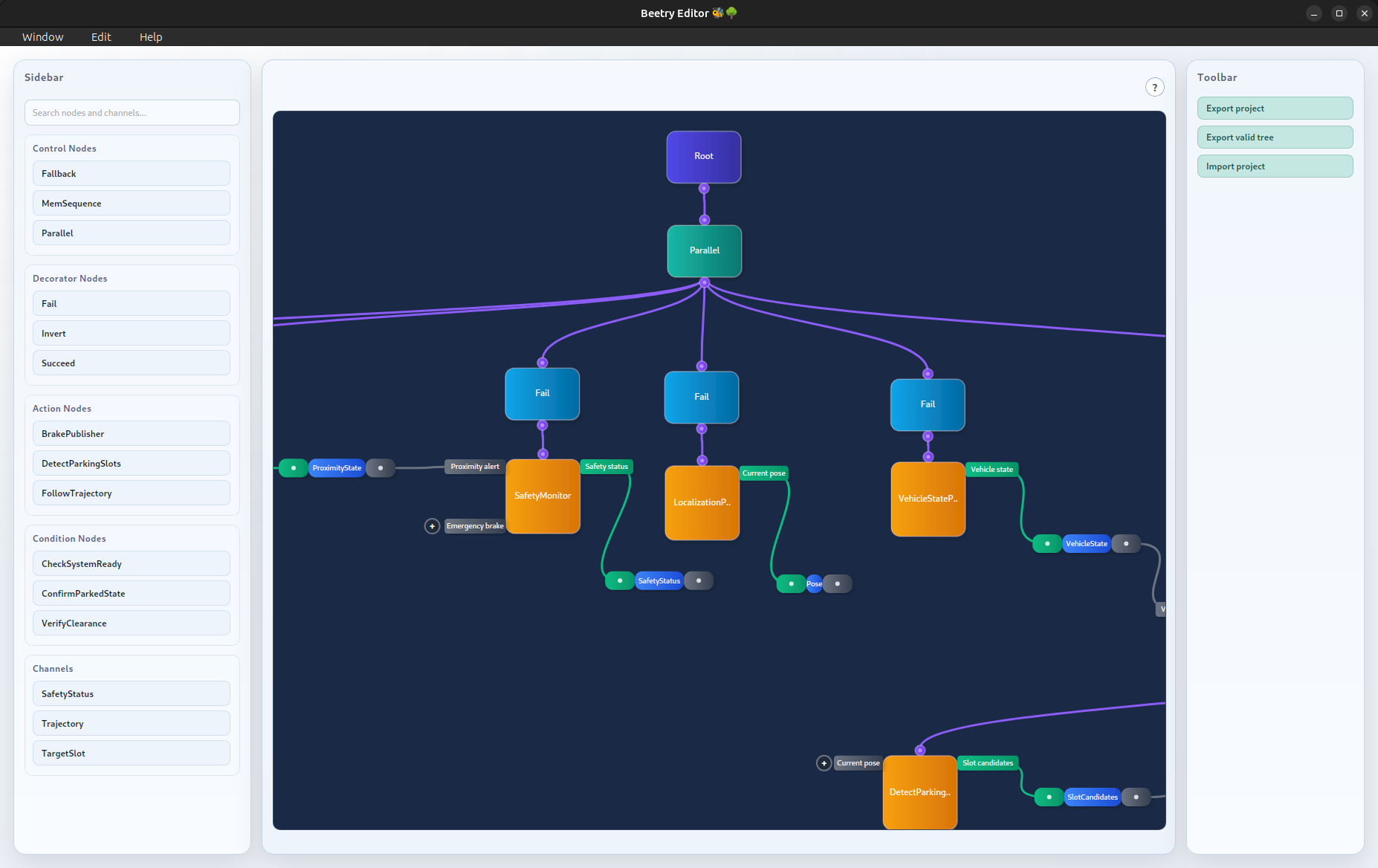
Creating Elements
When designing a tree, the left sidebar shows the elements that can be created. This includes the available nodes and the messages that can be transported through channels.
At the top of the sidebar, a search bar can be used to filter the displayed elements and quickly find the one that is needed.
The following video shows how to navigate the sidebar, create nodes and channels, and provide node parameters.
Node parameters cannot be created with invalid values, so such errors are detected early rather than at tree execution time.
When you hover over an element, it shows at least the element ID. For nodes with parameters, the currently used parameter values are also shown.
Connecting Elements
Connecting nodes is as simple as clicking the output pin of a node and dragging it to the input pin of its child node.
Explicit inter-node communication is slightly more involved. First, a channel must be created for the message type that should be transported. Nodes that define input or output messages then expose corresponding ports. To create a connection, click a node port and attach it to the appropriate side of the channel.
This is also shown in the README demo video.
Navigating workspace
As a tree grows, it occupies more space in the workspace. To make this manageable, the workspace can be panned and zoomed.
In larger trees, channel edges may start to clutter the view. They can be hidden easily by clicking on them, which is also shown in the video below.
The following video shows basic workspace navigation.
Toolbar
On the right side of Beehive, there is a toolbar that provides actions for importing and exporting artifacts. When exporting, sibling child order is derived from horizontal placement in the workspace, that means children are ordered from left to right.
In the bottom-left corner, an error dialog reports invalid actions. When the user tries to export a tree, a validation check is performed. If the check passes, the artifact can be stored. Otherwise, the error dialog shows what is missing.
This workflow is also demonstrated in the second part of the README demo video.
For details about the exported data format, see Serialization Format.